So you’ve read our list of the 10 best YouTube downloaders and thought “cool, but HOW exactly do I use these things?” We hear you. Millions of people search daily for guides on how to download YouTube videos so they can save tutorials, music, or workouts for offline viewing. Don’t stress – we’ve all been there.
That moment when you find the perfect tutorial, recipe video, or that absolute banger of a song, and you just NEED it saved for offline viewing. Maybe your internet is unreliable, maybe you’re going on a long flight, or maybe you just want to watch that video without buffering every five seconds.
How to Download YouTube Videos: The Best Methods With Step-by-Step Guides
Here’s the truth: not everyone is a tech wizard, and that’s perfectly fine. Some of us grew up when downloading meant waiting 3 hours for a single song on Limewire (if you know, you know). Others are digital natives but still get confused by the endless pop-ups and “CLICK HERE” buttons that seem designed to trick you.
The good news? Once you know the process, downloading YouTube videos becomes as easy as ordering your morning coffee. And that’s exactly what this guide is for – showing you the safest, easiest methods with clear step-by-step instructions so you can start downloading YouTube videos right away.
Method 1: Web-Based Downloaders (No Software Required)
Best for: People who don’t want to install anything new on their computer
Using SaveFrom.net
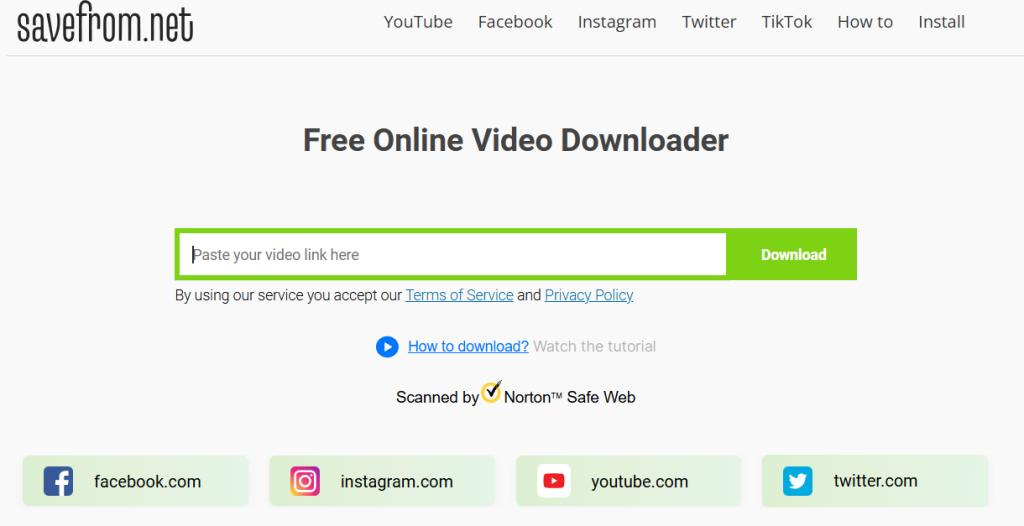
How it works:
- Copy the YouTube URL – Go to the video you want, copy that long web address from your browser
- Head to SaveFrom.net – Find it in your browser (yes, it’s really that simple)
- Paste and go – Drop that URL in the box and hit the download button
- Choose your quality – Pick between 720p, 1080p, or whatever your storage can handle
- Download – Click download and wait for it to finish
Pro tip: Ignore any ads or pop-ups that aren’t the main download button. Stick to the clean, simple interface.
Using Y2Mate
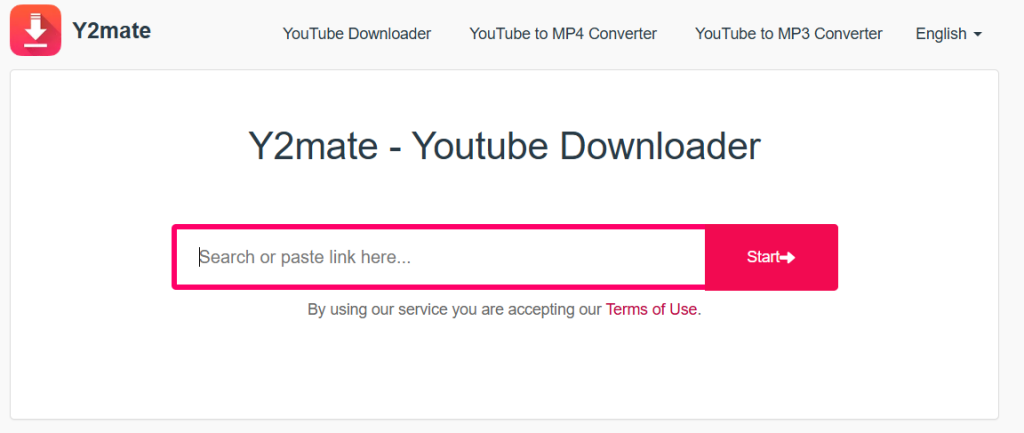
How it works:
- Grab your YouTube link – Same as before, copy that URL of the YouTube video
- Visit Y2Mate – Navigate to the site
- Paste the link – Drop it in their search box
- Select format – Choose between MP4 for video or MP3 for audio-only
- Pick quality – Higher quality = bigger file size
- Convert and download – Hit convert, wait a few seconds, then download
Method 2: Desktop Software (For the Control Freaks)
Best for: People who download videos regularly and want more features
Using 4K Video Downloader
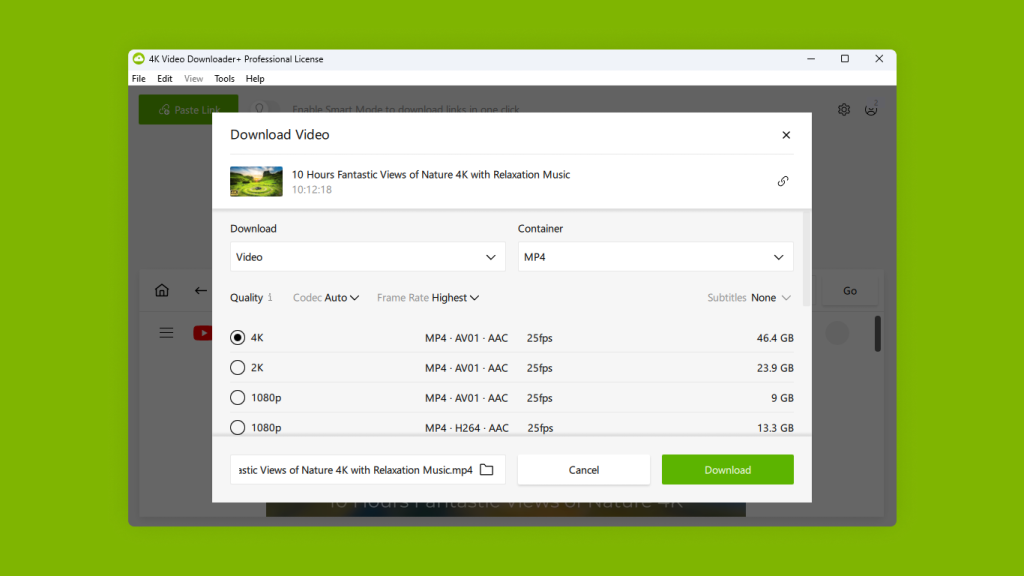
How it works:
- Install the software – Download from their official website (not from random download sites)
- Copy your YouTube URL – Get that link ready
- Open 4K Video Downloader – Launch the program
- Click “Paste Link” – The software might even detect your clipboard automatically
- Choose format and quality – Pick what works for your device
- Select download location – Choose where you want the file saved
- Hit Download – Sit back and let it work
Using yt-dlp (Command Line Hero Mode)
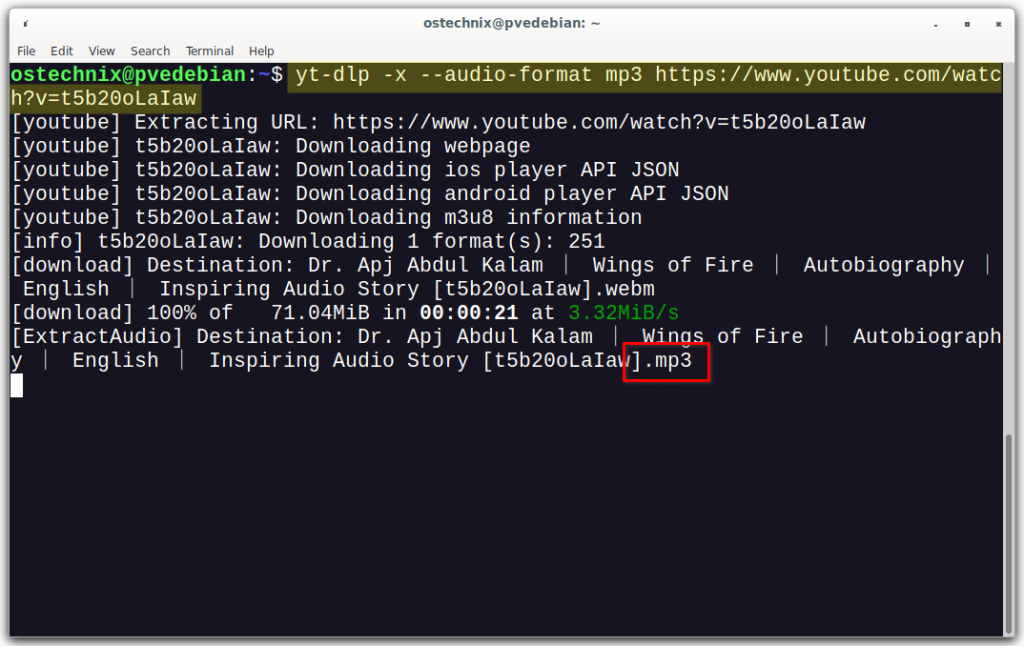
How it works:
- Install yt-dlp – Download from GitHub or use package managers
- Open terminal/command (cmd) prompt – Time to feel like a programmer
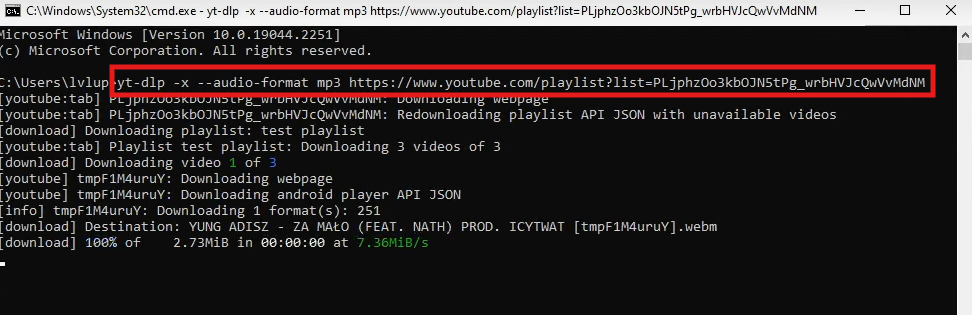
- Type the magic words: yt-dlp -x –audio-format mp3 [YouTube URL]
- Press Enter – Watch the magic happen
- Find your video – It’ll save to your current directory unless you specify otherwise
For the less terminal-savvy: You can add flags like –format best for highest quality or –extract-audio for audio-only downloads.
Method 3: Mobile Apps (Download on the Go)
Best for: People who live on their phones and want instant gratification
Android with NewPipe
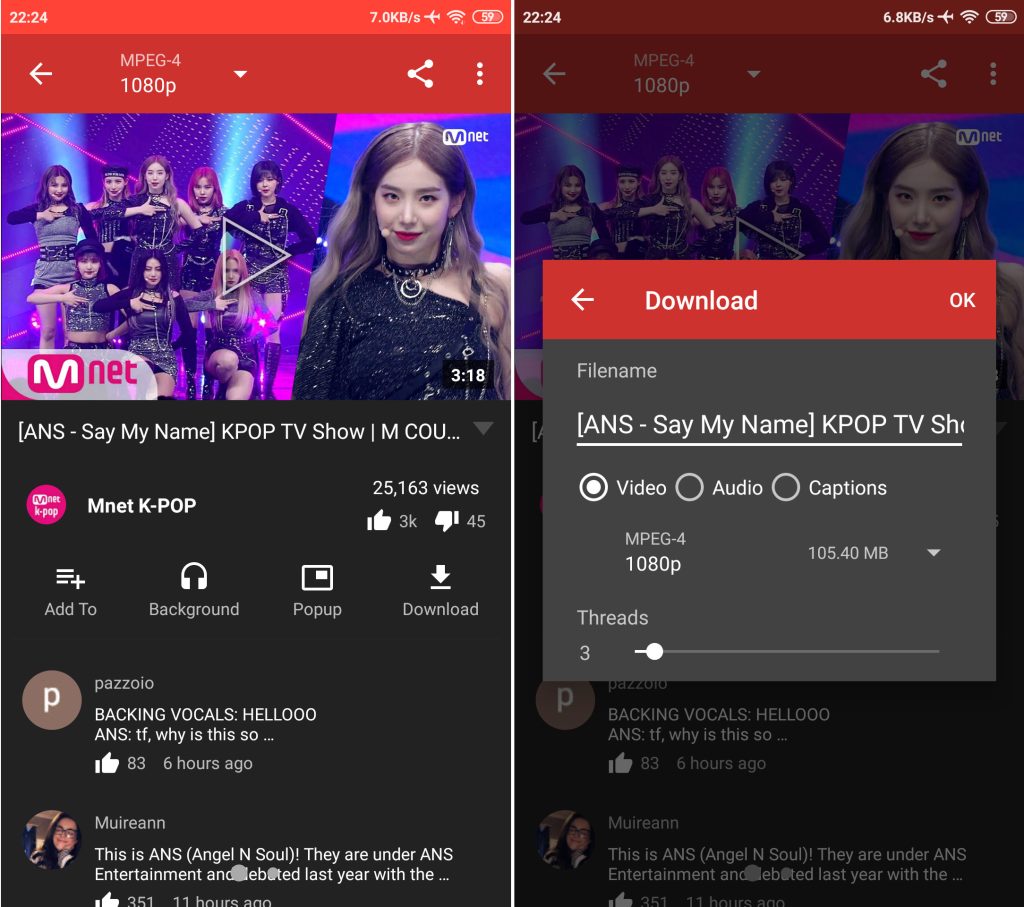
How it works:
- Download NewPipe – Get it from F-Droid or their GitHub (not Play Store)
- Install the APK – You might need to allow “unknown sources” in settings
- Open NewPipe – It looks like YouTube but cleaner
- Search or paste URL – Find your video
- Tap the download arrow – Usually next to the share button
- Choose quality and format – Pick what works for you
- Download – It’ll save to your phone’s download folder
iOS with Documents by Readdle
How it works:
- Install Documents – Get it from the App Store
- Open the built-in browser – Tap the compass icon
- Go to a web downloader – Like SaveFrom.net
- Follow the web method – Same process as desktop web downloading
- Save to Files – The download will go to your Files app
Read also: Top 8 YouTube Video Downloaders for Mac in 2025
Method 4: Browser Extensions (Quick Access in Your Browser)
Using Tubly Downloader (Chrome/Edge/Firefox)
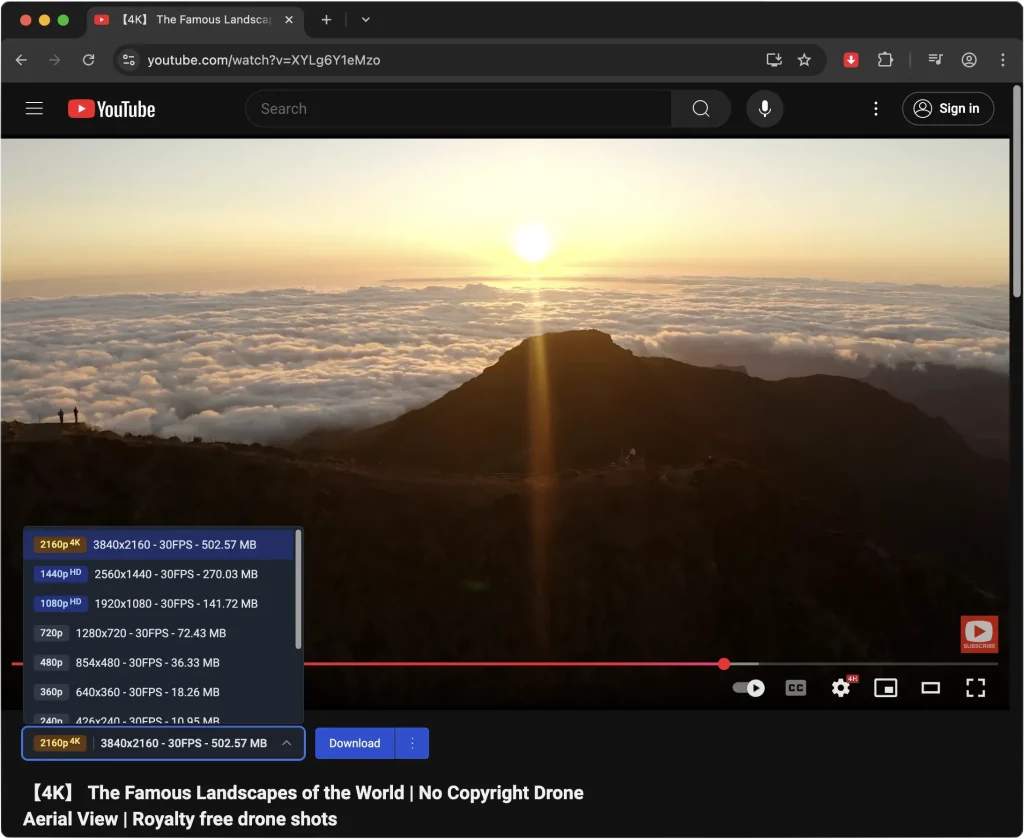
How it works:
- Install the extension from Tubly – Download the extension package (.zip file) and follow the installation guide
- Open any YouTube video – Tubly automatically detects the content.
- Pick your format – Choose the format (HD or even 4K) for video or MP3 if you just want the audio.
- Click download – The video saves directly to your device.
Using Video DownloadHelper (Chrome/Firefox)
How it works:
- Install the extension – Search for “Video DownloadHelper” in the Chrome Web Store
- Open YouTube – Play the video you want to save.
- Click the extension icon – It detects the video automatically.
- Choose format & quality – Select MP4, WebM, or audio-only.
- Download – Save the file in seconds.
Read also: 7 Best YouTube Downloader Chrome Extensions in 2025
Common Hiccups (And How to Avoid Them)
“The download is taking forever”: Higher quality = bigger files = longer downloads. Try a lower resolution if you’re in a hurry.
“I keep getting ads and pop-ups”: Stick to the main download buttons. If a site is too spammy, try a different one from our list.
“The video won’t download”: Some videos are geo-blocked or have special protections. Try a different download method or check if the video is available in your region.
“My antivirus is freaking out”: Some downloaders trigger false positives. Stick to the reputable ones we’ve listed and always download from official sources.
Final Thoughts
So, what is the method to download YouTube videos? Well, different methods work better for different people: if you’re downloading one video once in a blue moon, web-based tools are perfect. If you’re building a collection of workout videos for offline use, desktop software gives you more control. And if you’re always on your phone anyway, mobile apps are the way to go.